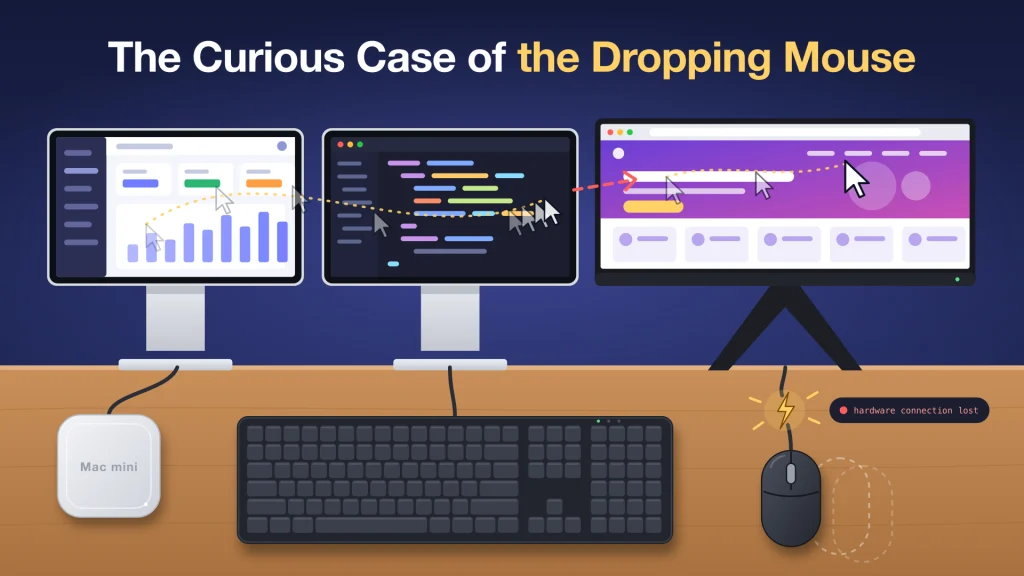
I was deep in a long session on Psychic Chat, with the admin dashboard on one screen, the code on another and the live site on a third, all driven by one Mac. Dragging windows across the three monitors, I noticed the pointer wasn’t gliding. It stuttered, froze for a blink, then jumped ahead.
It felt like software lag, the kind you shrug off. Instead I asked Claude Code, the AI coding assistant I was already using on the project, to find out why. What followed was an afternoon of experiments and a lesson about USB I would never have learned otherwise.
The setup
| Part | What it is |
|---|---|
| Computer | Mac mini (M4), macOS 26.6 |
| Monitors | 2 × Apple Studio Display (5K) + 1 ultrawide at 2560×1080, 75 Hz |
| Mouse | Logitech B100 wired optical mouse (USB ID 046d:c077), slow USB at 1.5 Mb/s, 125 reports a second |
| Keyboard | Logitech wired USB Keyboard (USB ID 046d:c31c) |
| KVM switch | Shared with a second computer; inside it a 4-port USB 2 hub on a GenesysLogic chip (05e3:0610) |
| Adapter | USB-A to USB-C, needed for the Studio Displays’ USB-C ports |
Clue one: the Mac was keeping score
The mouse wasn’t lagging. It was unplugging itself. macOS records every USB event, and Claude found the same three lines repeating in the system log: a USB “transaction error”, then “hardware connection lost”, then the mouse reconnecting about 10 milliseconds later. Each cycle froze the pointer for roughly a fifth of a second.
It had happened 41 times in the last hour, and it was speeding up: once at 13:55, then 27 times between 14:45 and 14:50.
Later, the KVM’s own port counters confirmed it. The mouse’s port had reconnected 63 times since the Mac started, with zero over-current events. Nothing was drawing too much power. The link to the mouse simply kept dying.
The red herrings
Three suspects looked guilty and weren’t.
- Spotlight. The Mac had just restarted and was re-indexing two NVMe backup drives, pushing the load to 9.6 on 10 cores. That makes a Mac feel sluggish, but it can’t make a USB device disconnect.
- ChatGPT and Chrome. This was the surprise of the day. Every time the mouse reconnected, both apps tried to open it directly at the USB level, and often got exclusive hold of it. They do the same to every USB device: the keyboard, the hubs, even an iPhone. The ChatGPT desktop app turned out to run on the same Chromium engine as Chrome (version 158), which explains the identical behaviour. I quit both apps, and the mouse dropped anyway. Nosy, not guilty.
- Power. Zero over-current events on any port, all afternoon.
The experiments
We moved the mouse from port to port and counted every disconnect in the log. Here is the whole afternoon, in order:
| # | Mouse plugged into | Adapter | Time there | Drops |
|---|---|---|---|---|
| 1 | KVM port 3 (its usual port) | No | about 55 min | about 55, once 27 in five minutes |
| 2 | Main Studio Display | Yes | 17 min | 1 |
| 3 | KVM port 4, ChatGPT and Chrome open | No | 26 min | 8 |
| 4 | KVM port 4, both apps quit | No | 9 min | 2 |
| 5 | KVM port 2, never used before | No | 17 min | 4 |
| 6 | KVM port 2, after power-cycling the KVM | No | 10 min | about 12 |
| 7 | Second Studio Display | Yes | 31 min | about 30, mostly while fast-swiping |
| 8 | Main Studio Display again, normal use | Yes | 22 min | 0 |
| 9 | Main Studio Display, deliberate fast swiping | Yes | 1 min | 1 |
| 10 | Main Studio Display, normal use | Yes | 11 min | 7 |
| 11 | Main Studio Display, fast swiping again | Yes | 5 min | 2 |
| 12 | Main Studio Display, the rest of the afternoon | Yes | 23 min | 7 |
The keyboard, in the same KVM all afternoon, dropped just twice, and not once in its final port for almost two hours.
The fast-swipe test
The quiet spells fooled us more than once. A port would look healthy for ten minutes, then fail. The reason: a mouse that sits still sends nothing, so it has nothing to fail on.
Once it moves, a mouse sends 125 reports a second. A keyboard sends data only when you press a key. Give both the same small chance of a garbled report, and the mouse fails far more often. That is why the keyboard on the same KVM barely noticed.
So I swiped the mouse hard on purpose. On the second Studio Display that produced bursts of five drops in six seconds. Holding the cable still while swiping made no difference, which pointed away from a break where the cable enters the mouse. On the main display, the same abuse produced one drop, but the next 11 minutes of ordinary work brought seven more.
The verdict
There was no single villain, just a weak link made worse by the path around it.
- The mouse side is the root. A healthy wired mouse never disconnects. This one dropped in every port we tried, including the best: 18 times in about 80 minutes on the main display, 15 of them outside the swipe tests. Something in the mouse, its cable or the USB-C adapter is failing.
- The KVM amplifies it. Through the KVM the drops came about once a minute; on the main display, about once every four or five minutes.
- Port quality beats hop count. Both Studio Displays connect to the Mac the same way, yet the second display’s port was several times worse than the main one’s.
The best port only made it bearable. The real fix is a new mouse: a Logitech Signature Wired M520 with a USB-C plug, which retires the old mouse and the adapter in one go. Until it arrives, the mouse lives in the main Studio Display’s port, and the keyboard stays on the KVM.
The jerky pointer felt like software. It was hardware failing hundreds of times an afternoon, and the Mac had written down every one. Without Claude Code reading the logs and counting with me, I’d have blamed the Mac and never known.
Try it on your own Mac
If your pointer stutters, open Terminal and check whether your mouse is quietly reconnecting. This lists every USB disconnect in the last hour:
log show --last 1h --style compact --predicate 'eventMessage CONTAINS "hardware connection lost"'This shows where each USB device is plugged in, through which hubs:
ioreg -p IOUSB -w0No output from the first command means no drops, and your stutter lies somewhere else. A long list means it’s time to start swapping ports.





Leave a Reply